
Guide
Upload a creative and submit it for approval
A creative is what runs on the screen. You upload the image to the media library, turn it into a creative and submit it to the operator for review.
Back to help
As a video
The video has no sound, the steps appear in it as subtitles.
Step by step
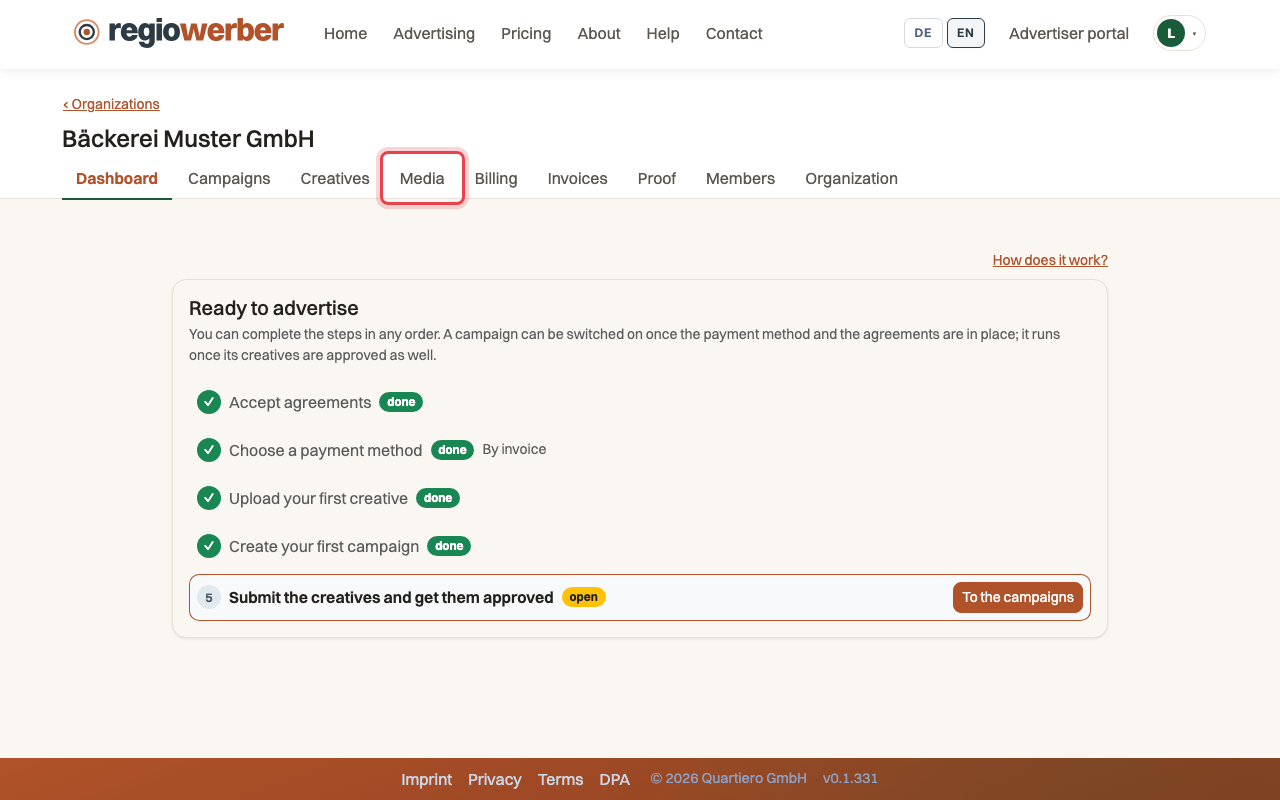
Step 1: Open the “Media” tab.
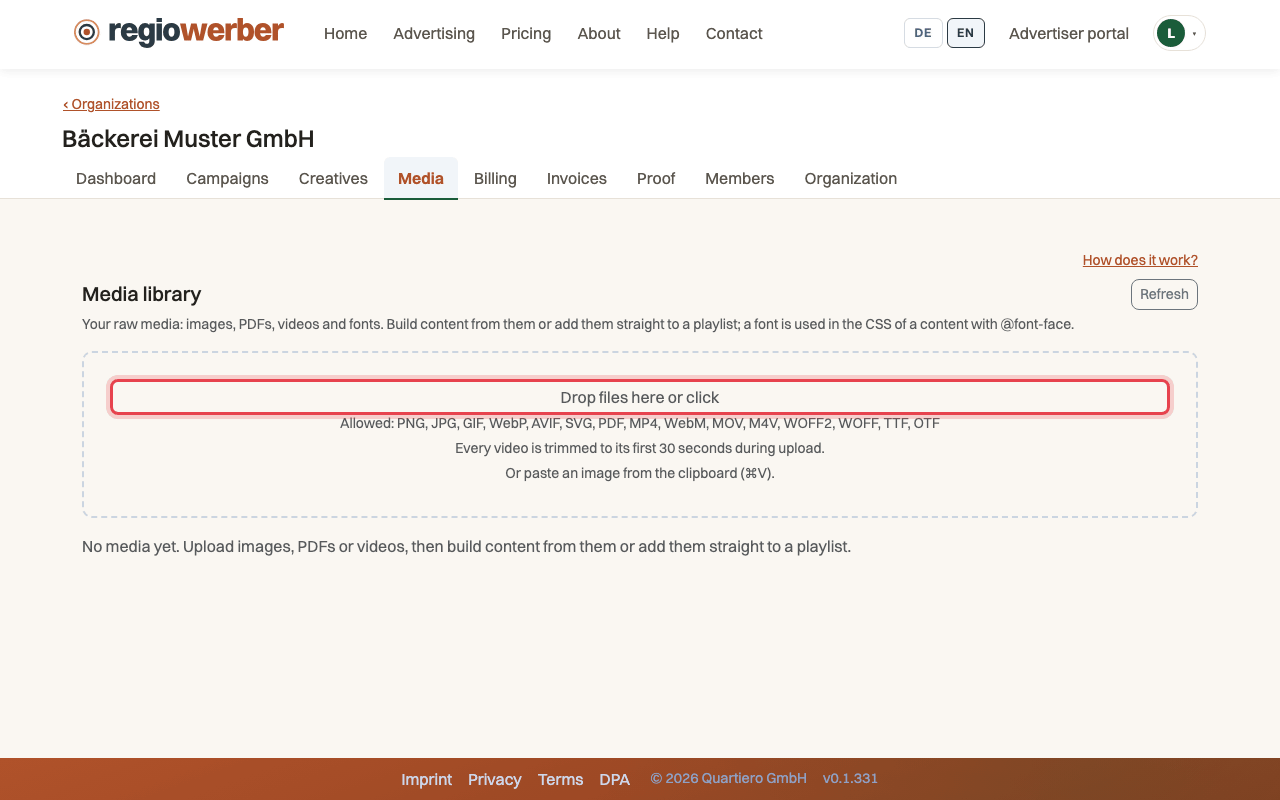
Step 2: Click “Drop files here or click” and choose your image.
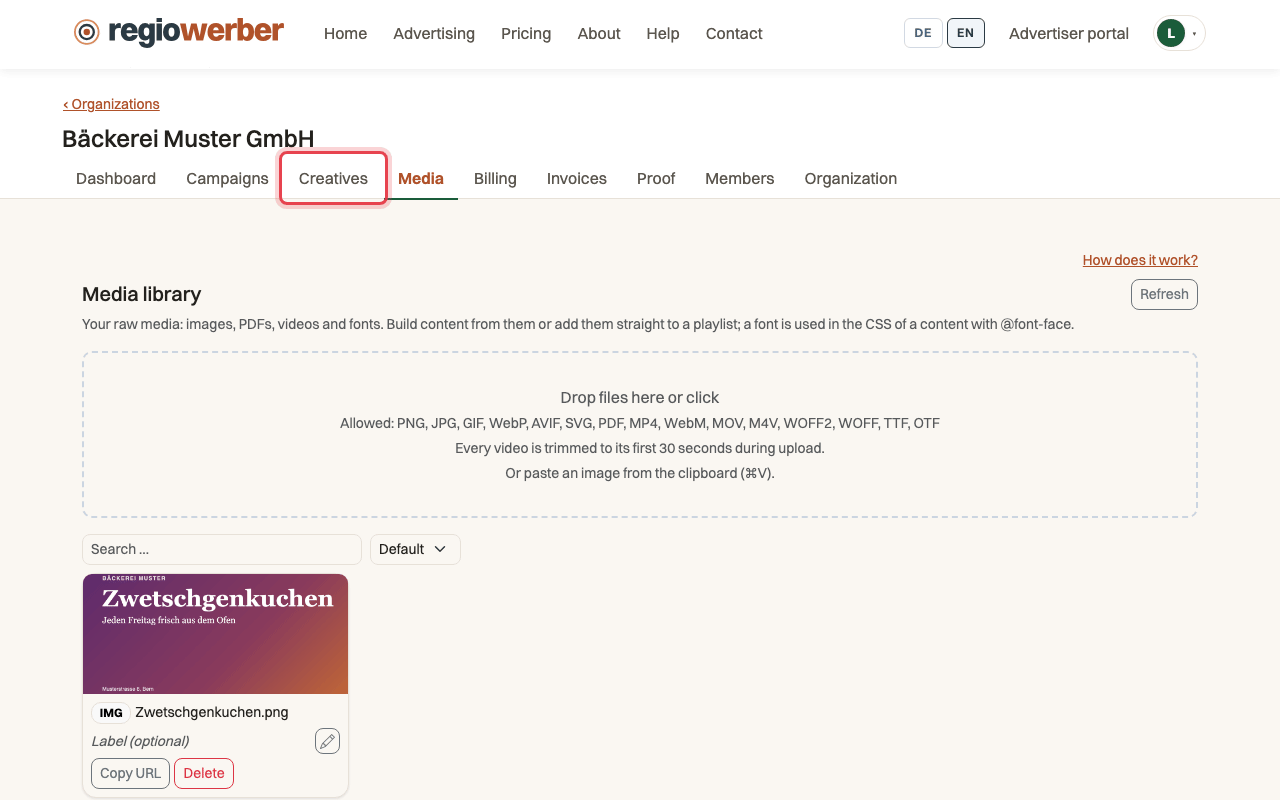
Step 3: Open the “Creatives” tab and click “New creative”.
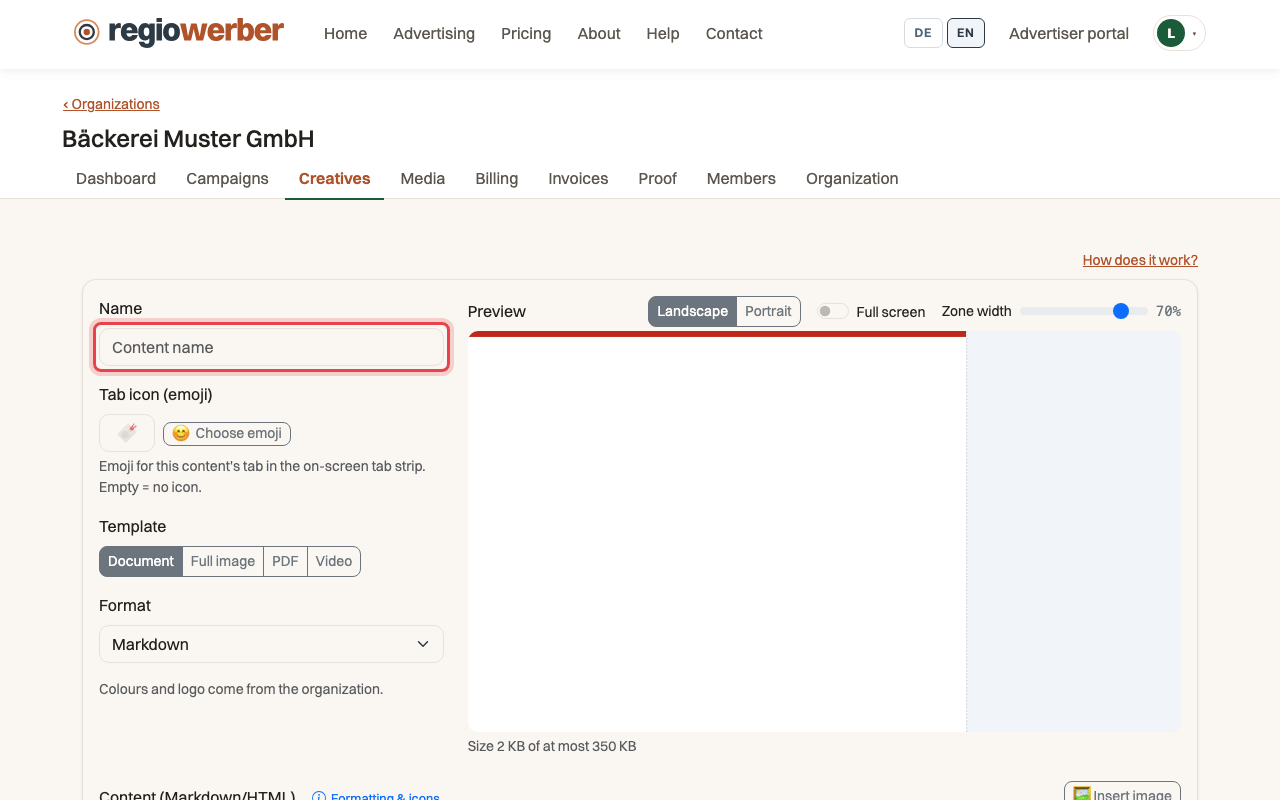
Step 4: Enter a name and choose the “Full image” template.
Step 5: Pick the image through “Choose from library” and click “Save”.
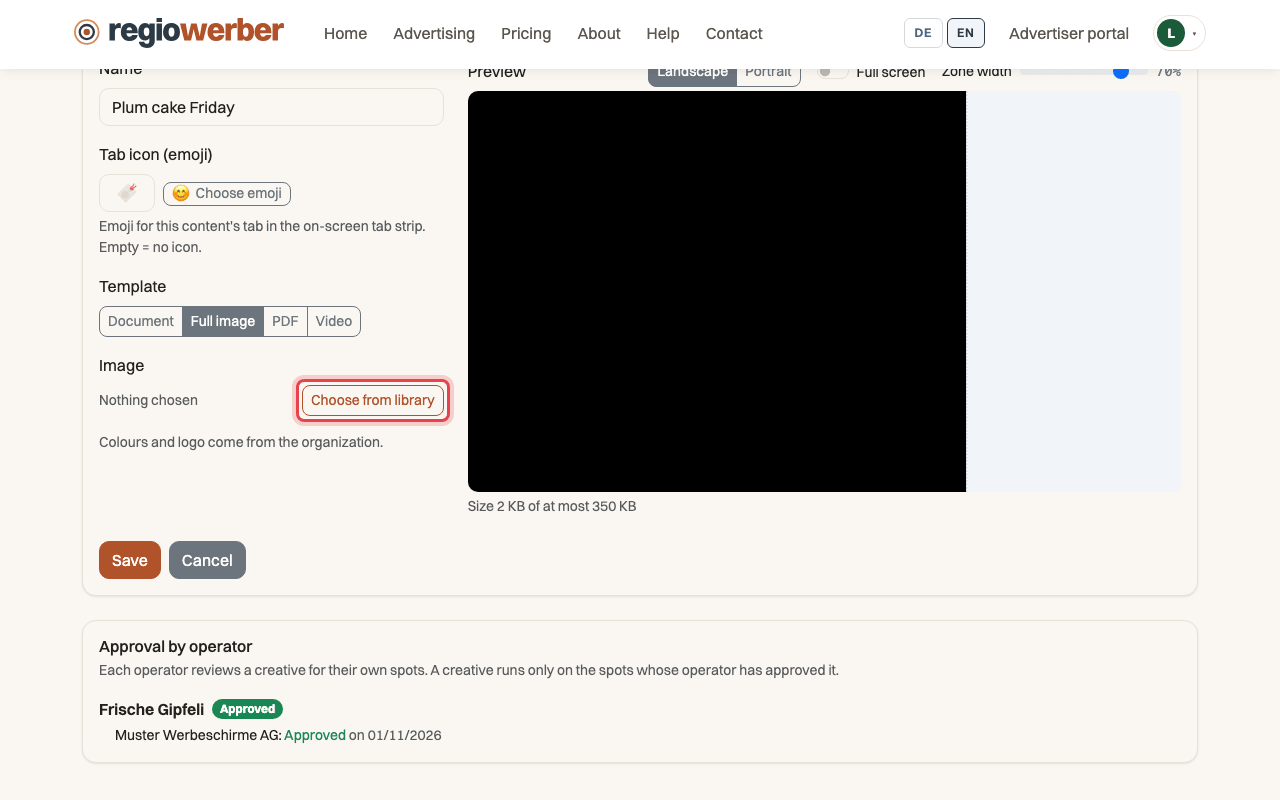
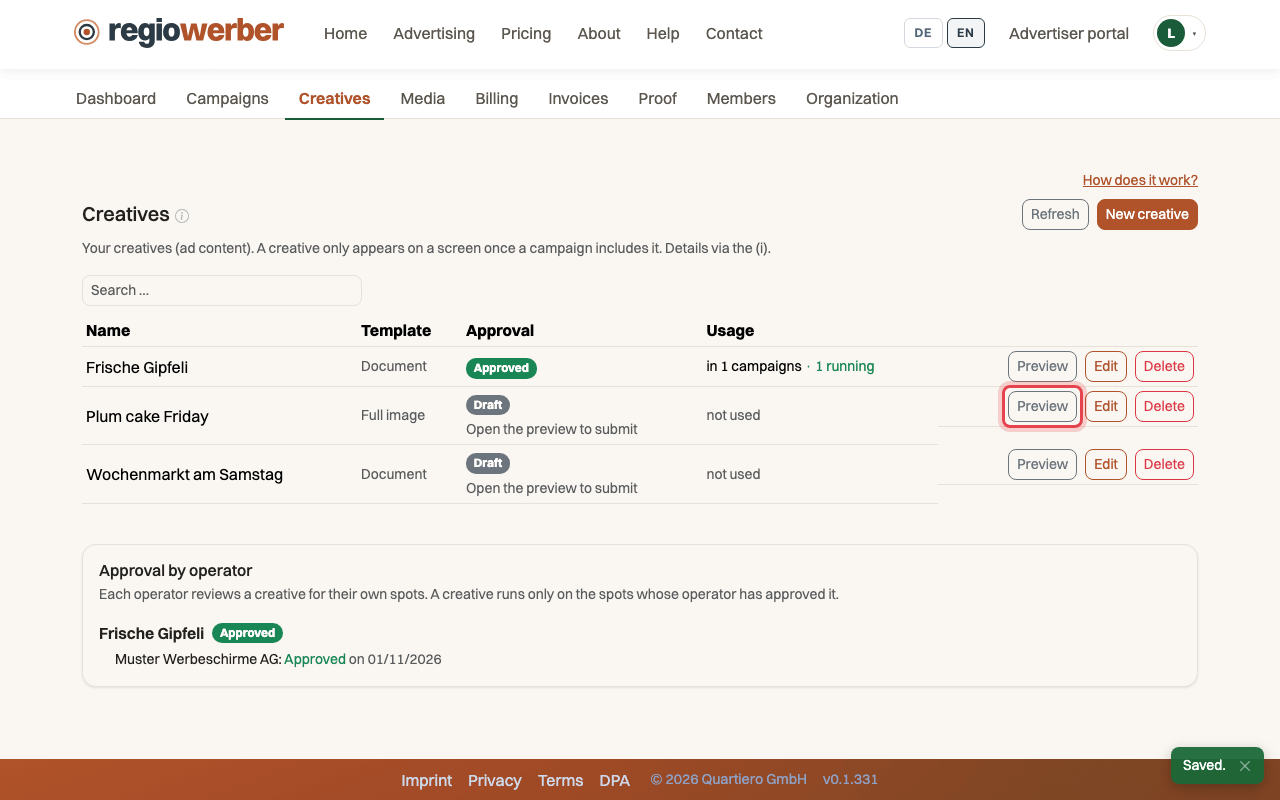
Step 6: In the list, click “Preview” next to the new creative.
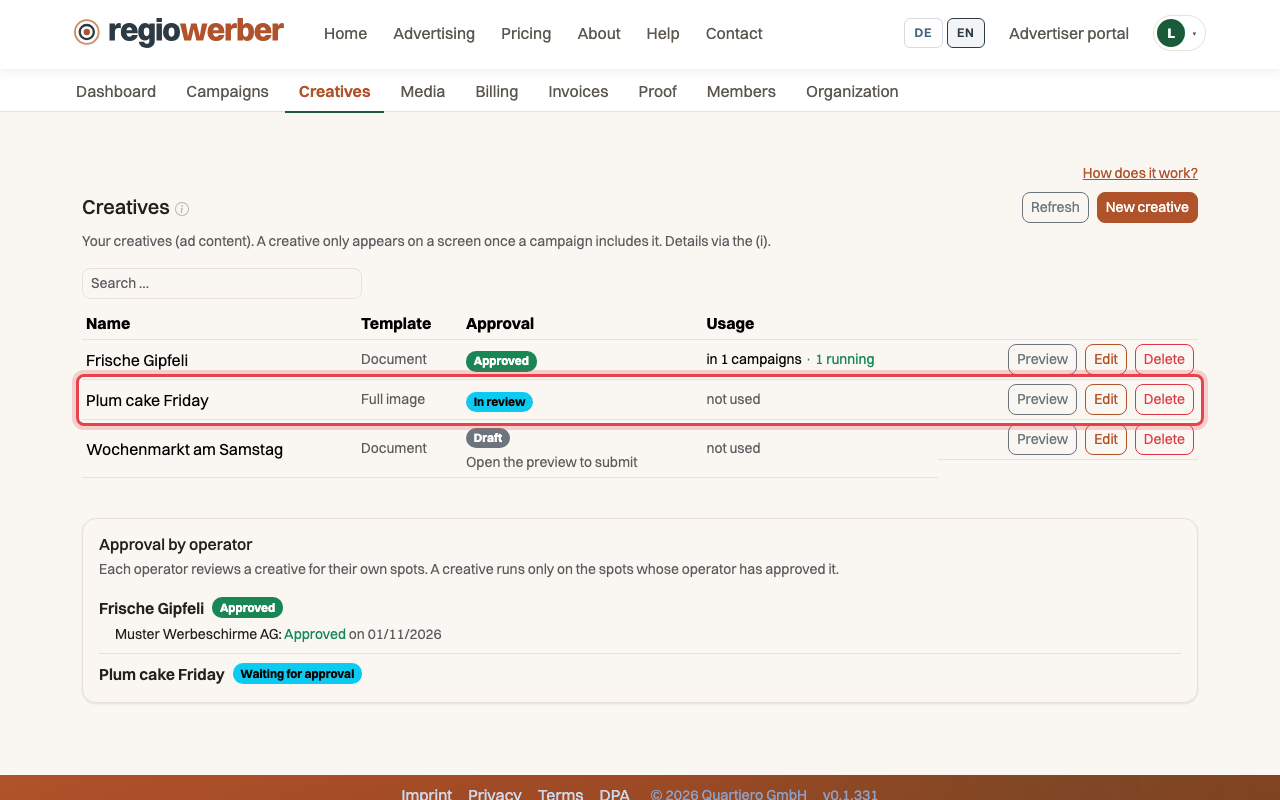
Step 7: Click “Submit”, “Approval” then reads “In review”.
Stuck at some point? Then write through the contact page. Go to contact